Step 1 · A connection you can reuse
Connect the cookbook to Claude Code
Start at Claude Code, add the cookbook once, and give Claude one ordinary website request. Claude should verify the connection and do the technical setup.
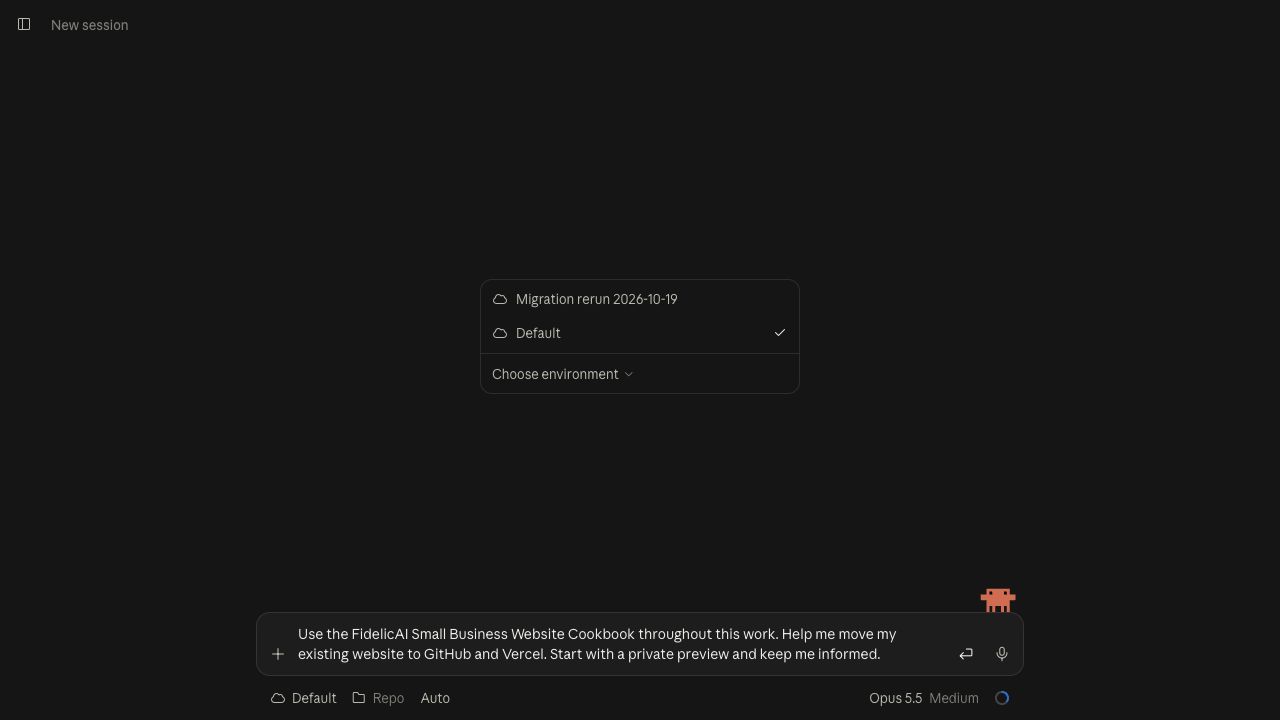
1. Open Claude Code
Go to claude.ai/code and sign in. Use an existing eligible plan. If Code asks you to choose a paid plan, read the offer before accepting it. The account and payment decision stay with you. Eligible Claude Code access does not itself require a paid Vercel hosting plan.
2. Add the cookbook
In Claude, open Customize → Connectors. Choose Add, then Add custom connector. Name it FidelicAI Website Cookbook and enter this address:
https://mcp.fidelic.ai/mcp
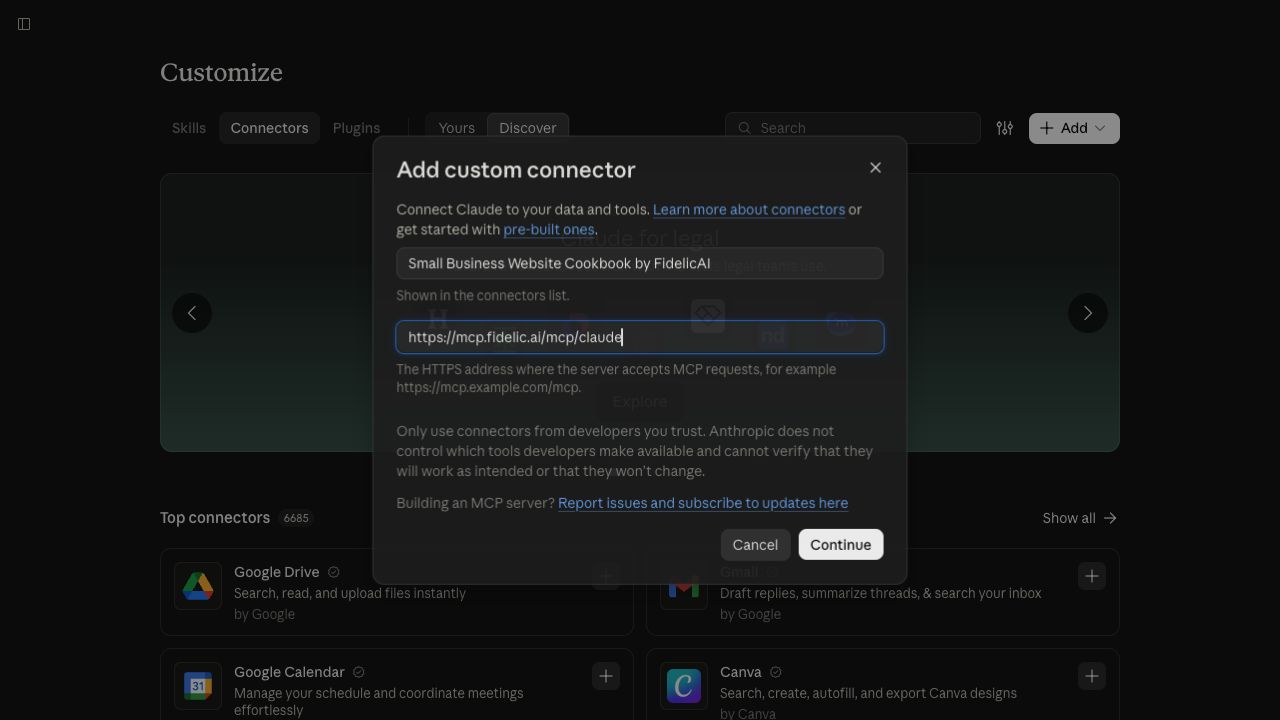
Select Continue. If Claude detects sign-in settings, continue to the authentication step and choose No sign-in, then finish adding the connection. This published cookbook does not need a service account, secret or payment.
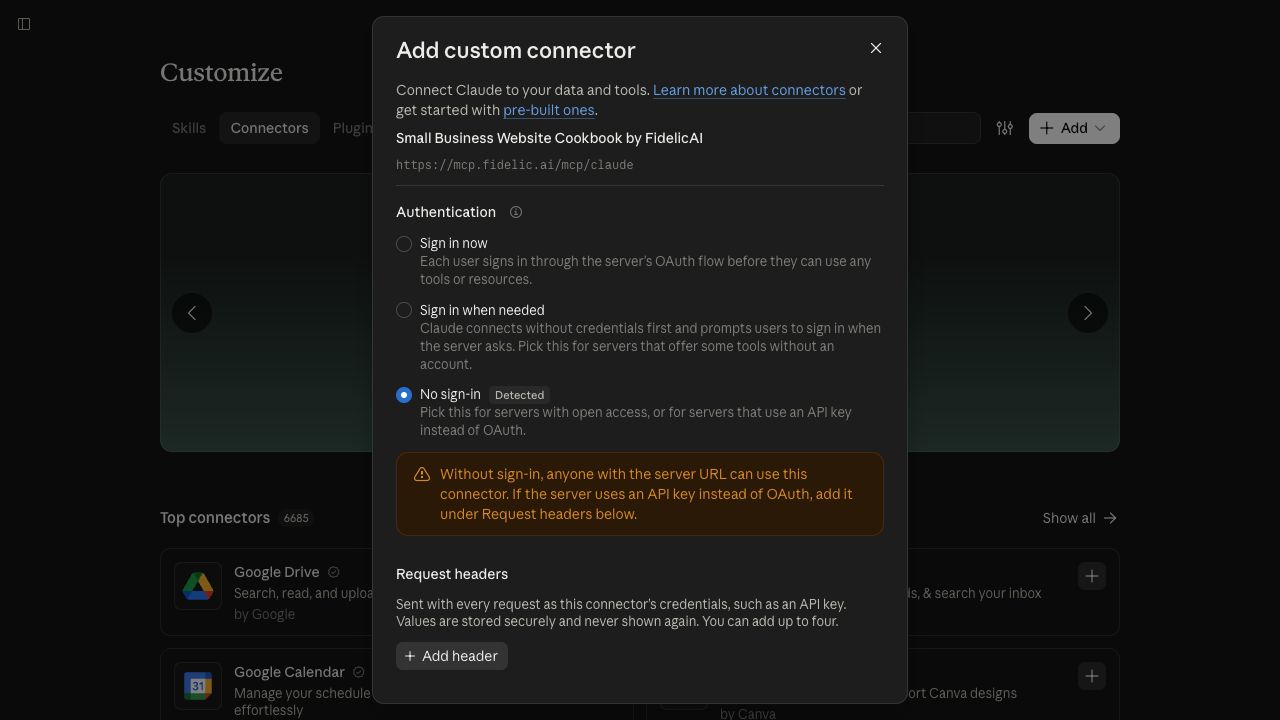
I already have a FidelicAI connection
Reuse it. Do not create another connection just to follow these pictures. The cookbook address is https://mcp.fidelic.ai/mcp. If your connection uses the retired https://mcp.fidelic.ai/mcp/claude address, change its address to the cookbook address above. Claude should verify that it can actually retrieve the guidance.
3. Enable it in the working conversation
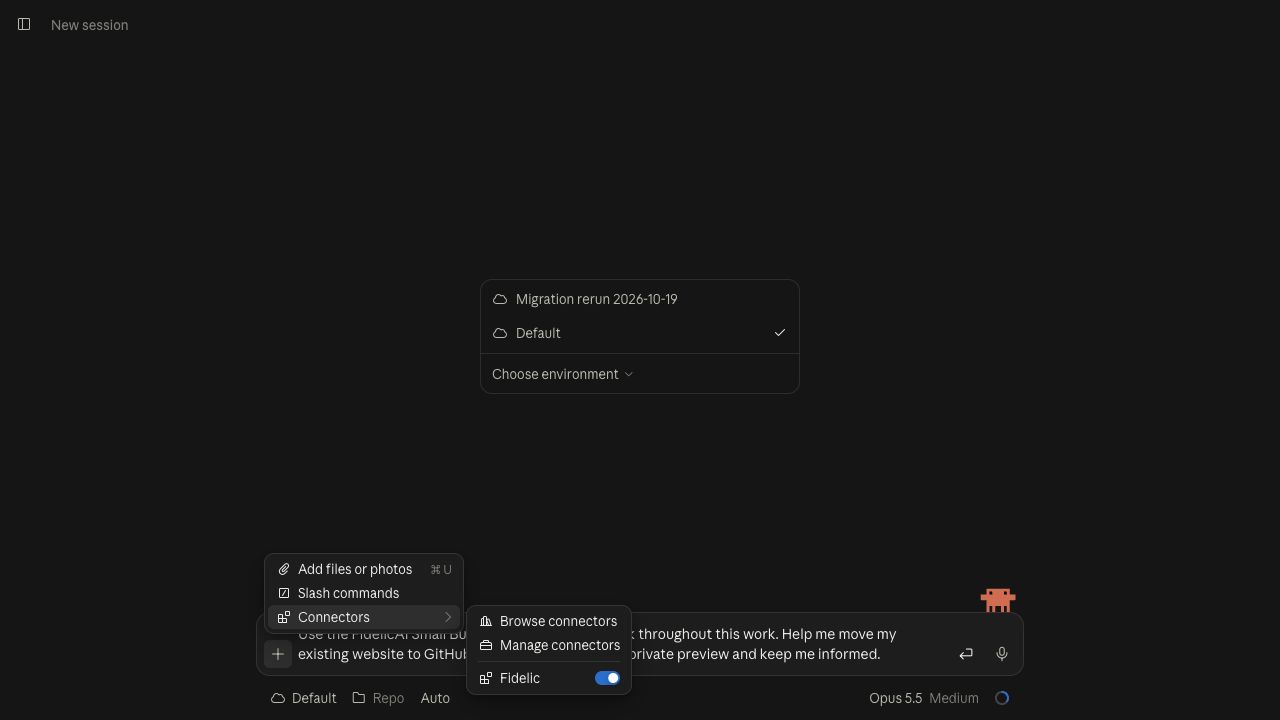
Return to Claude Code. Open the conversation’s Add → Connectors menu and enable the FidelicAI connection if it is not enabled already. A connected badge alone does not prove Claude used the cookbook.
4. Give Claude the migration request
Copy this into Claude Code and replace [website address] with your current website address. No technical background is needed.
Use the FidelicAI Small Business Website Cookbook throughout this work. Move my website at [website address] to GitHub and Vercel. Preserve its useful design, content, page addresses and customer journeys. Set up or reuse my accounts and prepare any signups and meaningful access approvals I need to complete. Keep me informed in plain language and minimize my thinking, typing and clicks. Keep my chosen hosting plan and no-spending preference. Start with a password-protected preview while my current site stays live. Give me the private working link and remaining review. Ask before paid plans, trials or moving my business domain.
Claude’s first setup decision: website access
Claude should check the current environment before installing tools or copying the site. For a dedicated migration, it should recommend Full network access when you accept the broader scope: the cloud computer can reach any domain. This avoids repeated requests to add individual website hosts. Choose Limited if you prefer a narrower approved list and are comfortable with more access steps. Full is a recommendation for your decision, not an automatic change.
Claude should prepare the setting and ask one plain-language approval. If Full is already enabled or approved for this environment, continue without asking again. Full does not replace GitHub repository permissions, Vercel sign-in, the GitHub cloud proxy’s restrictions or other platform security checks.
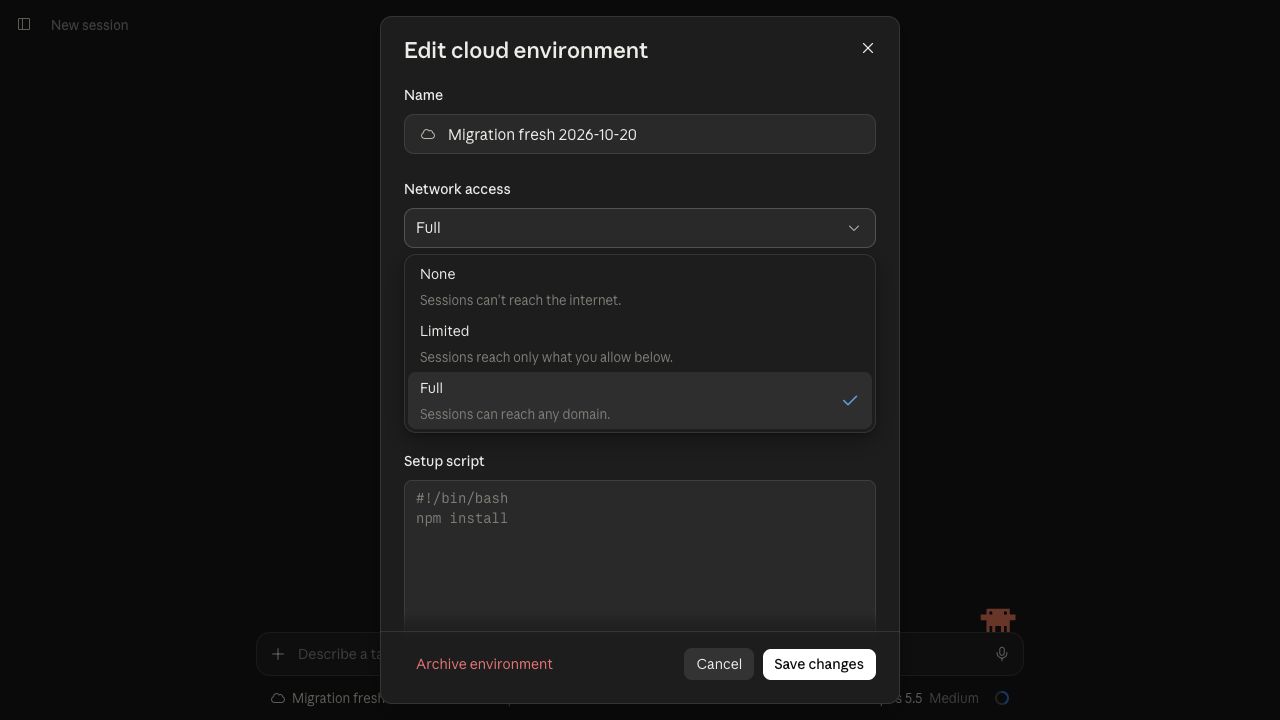
If you need to operate the setting yourself
In an existing Code session, open Session details → Environment and select the gear button, labelled Edit cloud environment. Open Network access, choose the option you approved, and save. In a new session, open the environment picker and edit the chosen cloud environment. Menus can vary by account.
Network changes can take about a minute to apply to an existing session. Claude should verify them and continue; it should not restart the session or repeat your approvals just because the change is still taking effect.
Claude should retrieve a relevant cookbook recipe, check its ability to edit files, run commands and deploy, and begin preparing the accounts. It should use the GitHub and Vercel command-line tools when its environment supports them.
The connector or Code is unavailable
Your organization may limit Code or connections. Claude should identify the actual limitation and help you reach a supported environment. Do not remove unrelated connections, pay for another account, or paste a broad access token just to get past an unexplained error.
Free accounts can use one custom connector; cloud Code access has separate plan requirements. See the access choices.
Example screens captured October 20, 2026, in an existing Pro account. No new paid purchase is demonstrated. See Claude’s connector setup guide and Code’s browser quickstart for current platform instructions.
What happens with your accounts →